
Paradox alarm in TapHome: arming, zones and alarm through PAI or the PRT3 module
Arm and disarm a Paradox alarm from TapHome and use its zones and alarm state in smart rules, through PAI for Spectra SP, Magellan MG and EVO, or through the PRT3 module for Digiplex EVO. Two beta templates are in the TapHome portal.

Why and how you would use it
Paradox alarm panels are common in houses and small businesses across Europe: the Spectra SP and Magellan MG series in many homes, Digiplex EVO in larger installations. When TapHome runs the house, the alarm usually stays separate. TapHome does not know whether the house is armed, and the alarm does not know what TapHome sees.
A typical case: a family arms the Paradox alarm when they leave, and would like TapHome to turn off the lights, close the blinds and lower the heating at the same moment, and to show which window is still open before they arm. Today that needs a wire from each PGM output of the panel to a TapHome input.
Paradox documents a home automation interface only for Digiplex EVO, through its PRT3 module. For Spectra SP and Magellan MG there is no official interface; the open-source bridge PAI (Paradox Alarm Interface) covers all three series and passes the panel state to MQTT. Two community templates for these paths are now in the TapHome portal as a beta.
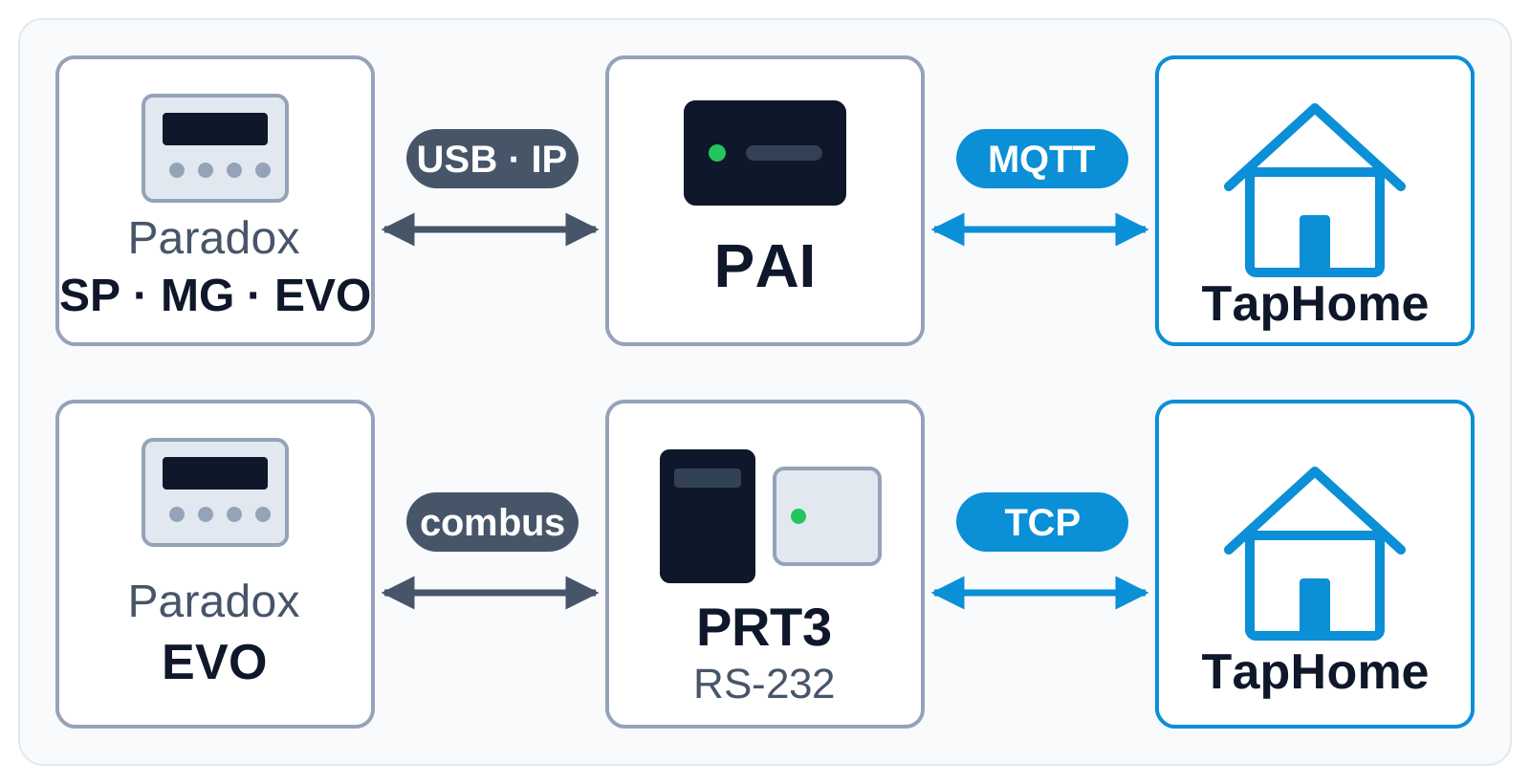
PAI runs on a small computer next to the panel and publishes the state to the MQTT broker built into the TapHome Core. On Digiplex EVO, the PRT3 module speaks the official Paradox protocol over a serial port, and a converter brings it to the local network.
| Today | With this idea | |
|---|---|---|
| Arming state in TapHome | PGM wiring only | Every area state |
| Zones in TapHome | Not visible | Open, alarm, tamper |
| Templates | Beta, being tested | Tested, verified |
What will be possible
Both templates work without a change to TapHome itself. They were tested with a simulated PAI and a simulated PRT3 on a TapHome Core, not yet with a real Paradox panel, so each point below is still to be confirmed in a real installation.
- Arming and disarming from TapHome. The area shows Disarmed, Armed, Armed Stay, Armed Sleep (SP and MG) or Arming, and it can be armed or disarmed from the app, smart rules and scenes.
- Alarm as a state. An alarm in the area shows as its own state, ready for notifications and smart rules.
- Zones as contacts. Each zone shows open or closed, with warnings for alarm, tamper and the low battery of a wireless zone.
- PGM outputs. One PGM output of the panel shows its state; through PAI it can be switched too.
- Nothing sent on restart. When the TapHome Core starts, the templates take the state from the panel and send no arming command.
What will not be possible
- Every panel through the official protocol. Paradox documents its home automation protocol only for Digiplex EVO with the PRT3 module. Spectra SP and Magellan MG work only through PAI, which uses a protocol Paradox does not publish and which can change with new panel firmware.
- Every connection. On the “+” panels (for example SP6000+ or MG5050+) the serial port is locked for third-party devices until it is unlocked with a code from Paradox. An IP150+ module with firmware 6.x and the IP180 module do not allow local connections.
- Arming without a code through the PRT3. The PRT3 needs a user code for each command; the template keeps the code of a panel user created for TapHome.
- Panic alarms from TapHome. Panic and smoke reset commands are left out on purpose, because they trigger a real alarm report.
How to solve it today
- The beta template for PAI. Install PAI next to the panel, point it to the MQTT broker of TapHome with a username and password, and import the PAI template from the TapHome portal (the first card above). The compatibility page shows each step and the security settings.
- The beta template for Digiplex EVO with PRT3. Connect the PRT3 serial port to an RS-232 to Ethernet converter and import the PRT3 template (the second card above); setup on its compatibility page.
- Wires, with any Paradox panel. A PGM output of the panel wired to a TapHome input shows armed or alarm, and a TapHome relay wired to a zone of the panel programmed as a keyswitch arms and disarms it. It gives only a few states, but it works with every panel and needs no software.
Learn more
- Satel ETHM-1 Plus, another alarm panel on the TapHome compatibility list.
- MQTT Broker built into the TapHome Core.
Which Paradox panel do you have, and how is it connected today? Try the beta templates and tell us in the comments how they work, vote for this idea and follow it for updates.
Requirements
- A connection to the device: MQTT, TCP, RS-232
Related
Status history
- Nov 5, 2026 Beta Published
Comments 0
Sign in with your TapHome account to comment. The team approves comments before they appear.
No comments yet.
·
The original comment was deleted.
Ideas describe direction, not commitments. We do not publish dates; released features are announced in the release notes.
Sign in with your TapHome account to follow. We email you when something changes; unsubscribe in one click.
Confirming your vote…