Make.com Integration Example
Step-by-step example of TapHome integration with Make.com (formerly Integromat) — exporting device data to Google Sheets
Last updated:
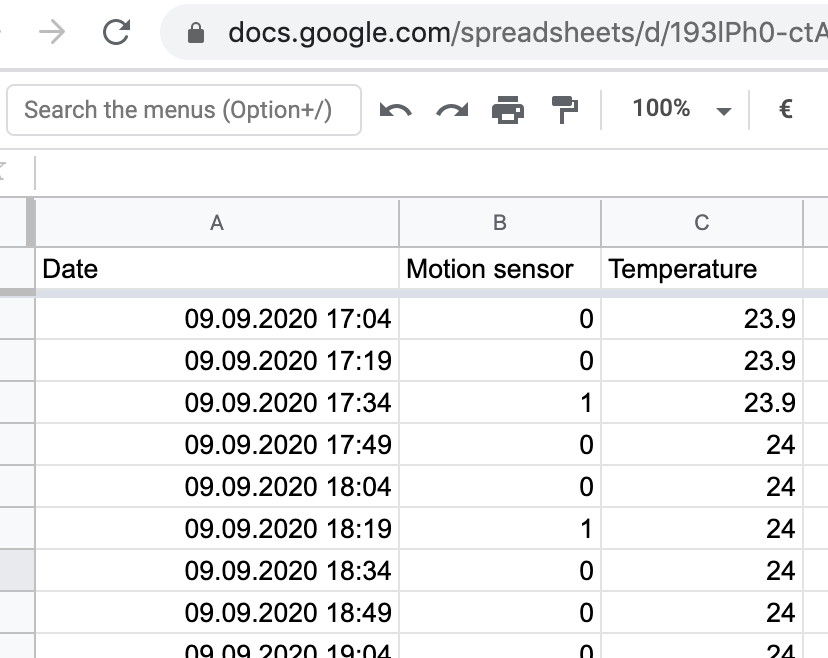
You can send TapHome device data to Google Sheets with a Make.com scenario (Make.com was formerly Integromat). The example works with the Make.com expose interface added in the TapHome app, a Google Spreadsheet and a Make.com account. You choose which devices export data, then set the scenario to either read values at set intervals (Get Device Value) or log every state change (Watch Device Value). The result is a spreadsheet that collects your TapHome data, such as temperature.
Looking for built-in exports? See Automated Exports for native Google Sheets and Excel integration (Core 2025.2 or newer). This article shows a Make.com automation example.
Step 1 - TapHome Setup
In the TapHome App, navigate to Menu > Settings > Expose Devices > Add new interface and select Make.com. After adding it, select Add device to choose which devices should export data to Google Sheets.

Step 2 - Google Spreadsheet Creation
Create a Google Spreadsheet with columns matching the data you wish to capture from TapHome.
Step 3 - Make.com Account & Scenario
Establish a Make.com account and create a new scenario at https://www.make.com/en/register. Search for both TapHome and Google Sheets services and proceed.
Step 4 - TapHome Integration Options
Click the TapHome icon to access two primary functions:
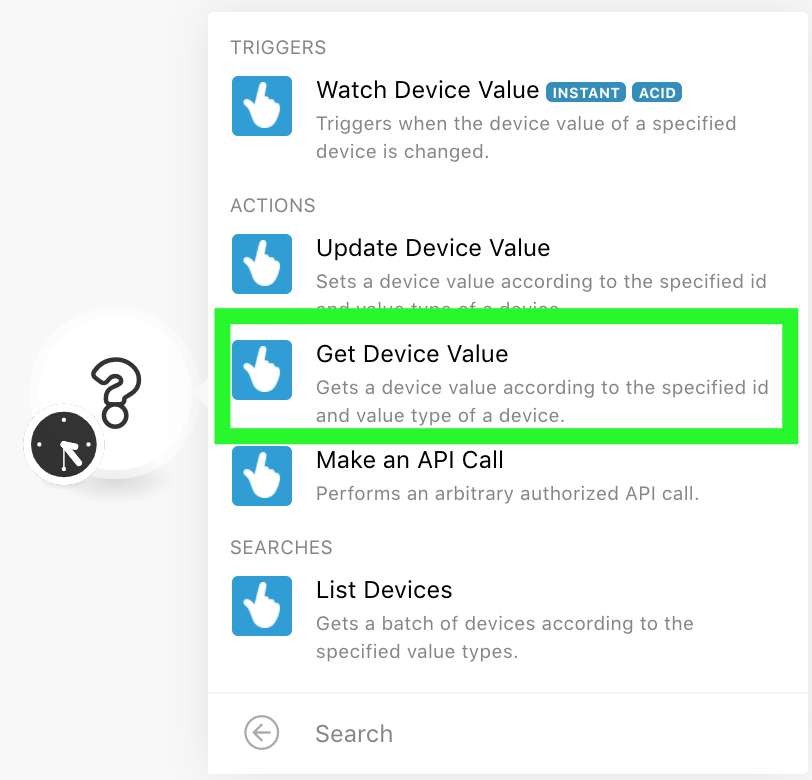
- Get Device Value — retrieves data at predetermined intervals (recommended for continuous readings like temperature)
- Watch Device Value — logs every device state change to the spreadsheet
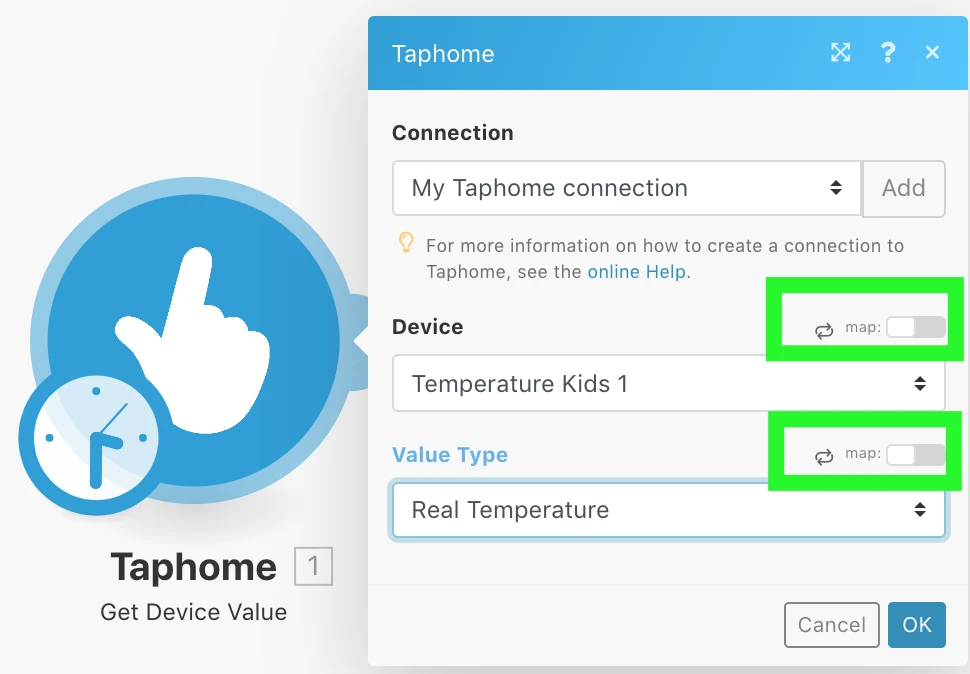
Critical Configuration Step
Disable the “map” checkbox before selecting your target device.
Step 5 - Google Sheets Connection
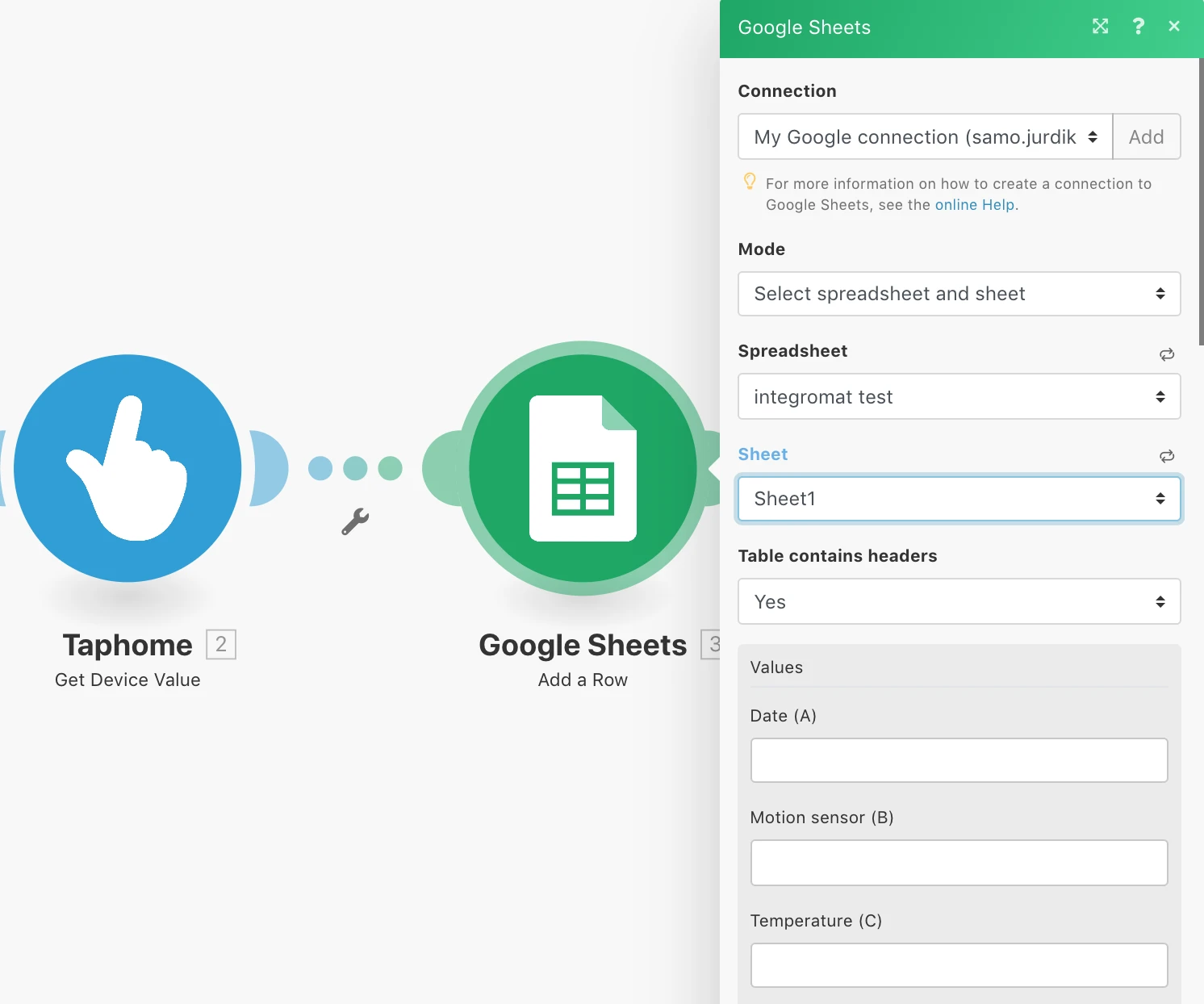
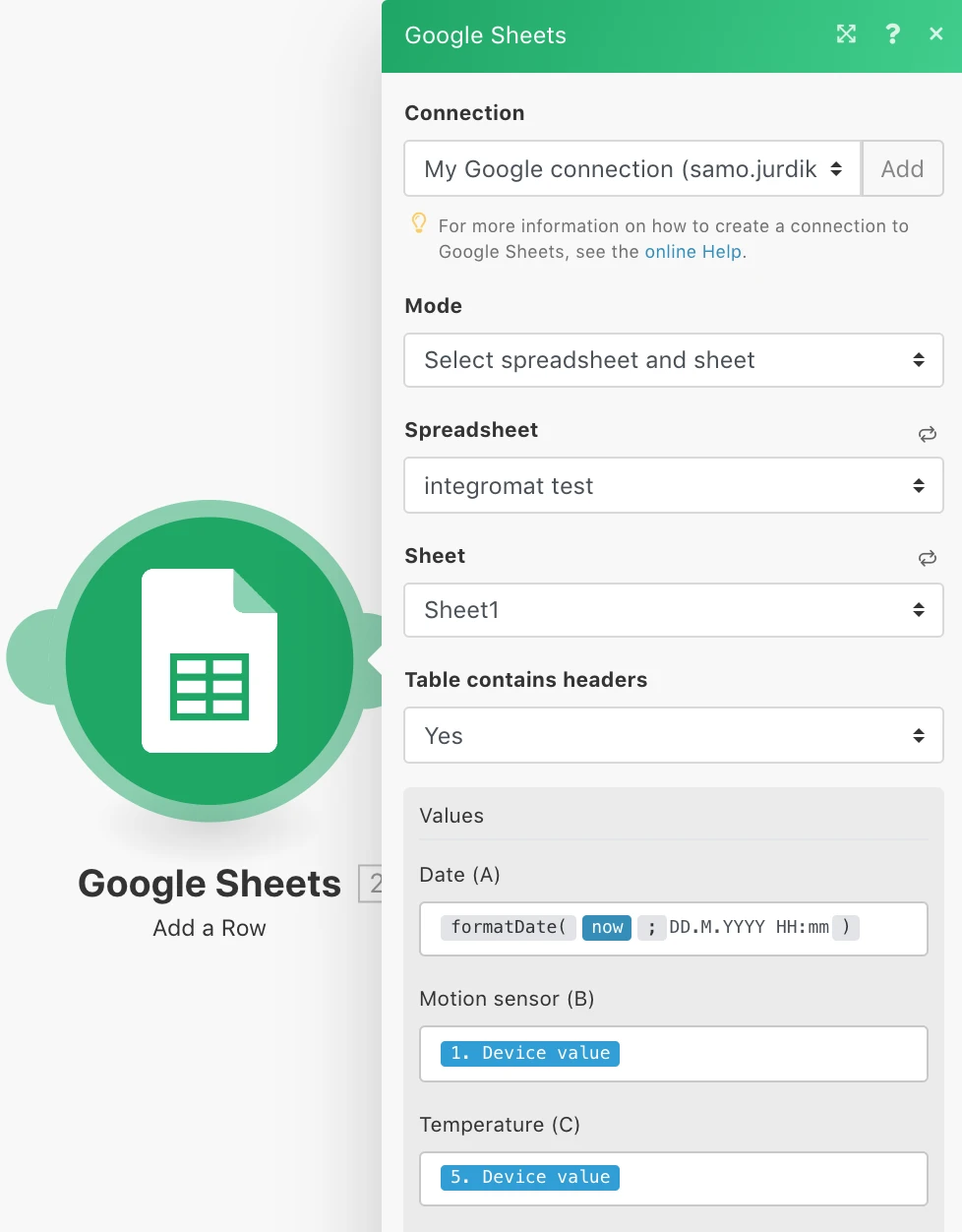
Click the right connector on the TapHome module to attach Google Sheets, then select your spreadsheet column and choose “Get value.”